Best OBS Recording Settings 4K, 2K, and 1080p
A no‑fluff, recording‑only guide to OBS settings for 4K, 1440p, and 1080p.


Best OBS Recording Settings for 4K, 2K (1440p), and 1080p
This guide focuses on recording only—no streaming settings. It assumes OBS 29+ with modern GPU encoders (NVIDIA NVENC, AMD AMF, Intel Quick Sync). If you’re on x264 CPU encoding, see the CPU notes in each section.
There isn’t a single “best” OBS configuration—hardware, games, and workflows vary. Treat these settings as a strong starting point and adjust based on your rig, storage, and editor. These are the setups that have worked well for me; if you’ve found tweaks that work better for you, please share them in our Discord so everyone can benefit.
General setup (applies to all resolutions)
- Canvas and Output Resolution: Set your Canvas to your monitor/game resolution. Set Output to the target resolution (4K, 1440p, or 1080p).
- FPS: 60 fps is the sweet spot for most gameplay; use 120 fps only if your hardware, storage, and editor can handle it.
- Color format: NV12, Color space Rec.709, Color range Partial (Limited) for broad compatibility.
- Recording format: Hybrid MP4. Similar to MKV, it saves recording segments, so if OBS crashes, you still have most or all of your footage, unlike older MP4s which often become unusable.
- Audio: Sample rate 48 kHz. Track bitrates 192–320 kbps for commentary; 256–320 kbps for game audio/music.
- Capture source: Prefer Game Capture over Display Capture. Window Capture is fine for borderless games.
Encoder picks (quick guidance)
- NVIDIA: NVENC (new) is best for recording. Rate control: CQP.
- AMD: AMF H.264/HEVC. Use CQP/VBR with quality target; AMF’s “Quality” preset if available.
- Intel: Quick Sync H.264/HEVC. Use ICQ/LAICQ (quality) or VBR with high quality settings.
- CPU (x264): Use CRF mode. Only if your GPU encoder is unavailable or you need specific x264 behavior.
Key feature toggles (GPU encoders)
- Preset: Quality (or P5/P6 if using NVENC presets). “Max Quality” adds GPU cost; most won’t see big gains.
- Psycho Visual Tuning (PVT): ON for better detail retention (NVIDIA).
- Look-ahead: OFF for lower latency and better performance.
- B-frames: 2 (safe default).
Bitrate vs Quality modes
- Prefer CQP/ICCRF for recording. They target a visual quality level rather than a fixed bitrate. File sizes vary per scene.
- If you must use bitrate, see the “Approximate bitrates” notes in each resolution section.
4K (3840×2160) recording Use when your GPU/CPU and storage can sustain it (especially at 60–120 fps).
NVIDIA NVENC (H.264)
- Rate control: CQP
- CQP: 14–20 (14–16 for pristine quality; 18–20 for smaller files)
- Preset: Quality
- PVT: ON, Look-ahead: OFF, B-frames: 2
- Keyframe interval: 2 seconds
- Expected averages: 50–120 Mbps at 4K60 depending on scene complexity
NVIDIA NVENC (HEVC/H.265)
- Better compression and quality at the same size; not all editors/platforms handle HEVC equally
- CQP: 18–24 (HEVC is more efficient; you can use a higher number for similar quality)
- Other toggles same as above
AMD / Intel (AMF / Quick Sync)
- Quality mode: CQP/ICQ around 18–24
- Preset: Quality
- B-frames: 2
- Keyframe interval: 2 s
x264 (CPU)
- Rate control: CRF 18–22 (lower = higher quality)
- Preset: Very fast–Medium depending on CPU. “Medium” looks better but is much heavier.
- Tune: None (or Film if your editor prefers it); Profile: High
- Note: 4K60 at Medium is unrealistic on most CPUs. Prefer GPU encoders.
Optional HDR (advanced)
- Color format: P010 10-bit, Color space Rec.2100 (PQ)
- Encoder: HEVC preferred
- Ensure your editor and playback pipeline support HDR; file sizes and compatibility trade-offs apply.
2K / 1440p (2560×1440) recording Sweet spot for high-end rigs; less CPU/GPU and disk pressure than 4K.
NVIDIA NVENC (H.264)
- CQP: 18–22
- Preset: Quality, PVT: ON, Look-ahead: OFF, B-frames: 2
- Keyframe interval: 2 s
- Expected averages: ~25–70 Mbps at 1440p60
NVENC (HEVC)
- CQP: 20–26
- Same toggles as above
AMD / Intel
- CQP/ICQ: 20–26, Preset: Quality, B-frames: 2, Keyframe: 2 s
x264 (CPU)
- CRF: 20–23
- Preset: Very fast–Fast for balance; Medium if your CPU can handle it
- Profile: High
1080p (1920×1080) recording Balanced quality and compatibility; ideal for most editors and viewers.
NVIDIA NVENC (H.264)
- CQP: 20–24 (20–22 for crisp detail; 23–24 for smaller files)
- Preset: Quality, PVT: ON, Look-ahead: OFF, B-frames: 2
- Keyframe interval: 2 s
- Expected averages: ~12–40 Mbps at 1080p60
NVENC (HEVC)
- CQP: 22–28 with similar visual quality at smaller sizes
AMD / Intel
- CQP/ICQ: 22–28, Preset: Quality, B-frames: 2
x264 (CPU)
- CRF: 21–24
- Preset: Very fast–Fast
- Profile: High
Scaling and sharpening
- If your Canvas is higher than your Output, use Downscale Filter: Lanczos (32 samples) for best detail.
- Avoid double-scaling (don’t rescale both the source and the output).
Disk and performance checks
- Storage throughput: Ensure your recording drive can sustain the throughput (e.g., 4K60 at high quality can exceed 80 Mbps). Use an SSD/NVMe for safety.
- CPU/GPU headroom: Keep 10–20% headroom for game and background tasks. If you see encoder overflows or stutter, raise CQP/CRF (higher number) or lower FPS/resolution.
- CFR vs VFR: Prefer CFR in Advanced settings for smoother editing timelines.
Quick presets by scenario
- “I want perfect archival quality at 4K60”: NVENC HEVC, CQP 18–22, P010 10-bit if you need HDR, otherwise NV12 8-bit; Preset Quality; MKV then remux.
- “I want easy-to-edit, widely compatible files at 1080p60”: NVENC H.264, CQP 20–22, Preset Quality, PVT ON, MKV then remux to MP4.
- “My CPU is strong but my GPU is busy”: x264 CRF 20–22, Preset Fast–Medium; consider 1440p60 instead of 4K60.
Troubleshooting visual artifacts
- Blockiness in fast motion: Lower CQP/CRF (e.g., from 22 to 20) or switch to HEVC; ensure PVT is ON.
- Stutter or encoder overload: Disable Look-ahead, raise CQP/CRF, reduce FPS, or drop resolution.
- Washed colors: Ensure Rec.709, Partial range, and correct color format in both OBS and your editor.
Bottom line
- Use GPU encoders with quality modes (CQP/ICQ) for recording.
- Pick resolution and FPS your system can sustain without impacting gameplay.
- Record Hybrid MP4 (New Method) or MKV, remux (Old Method) to MP4, and keep color settings consistent for clean edits.
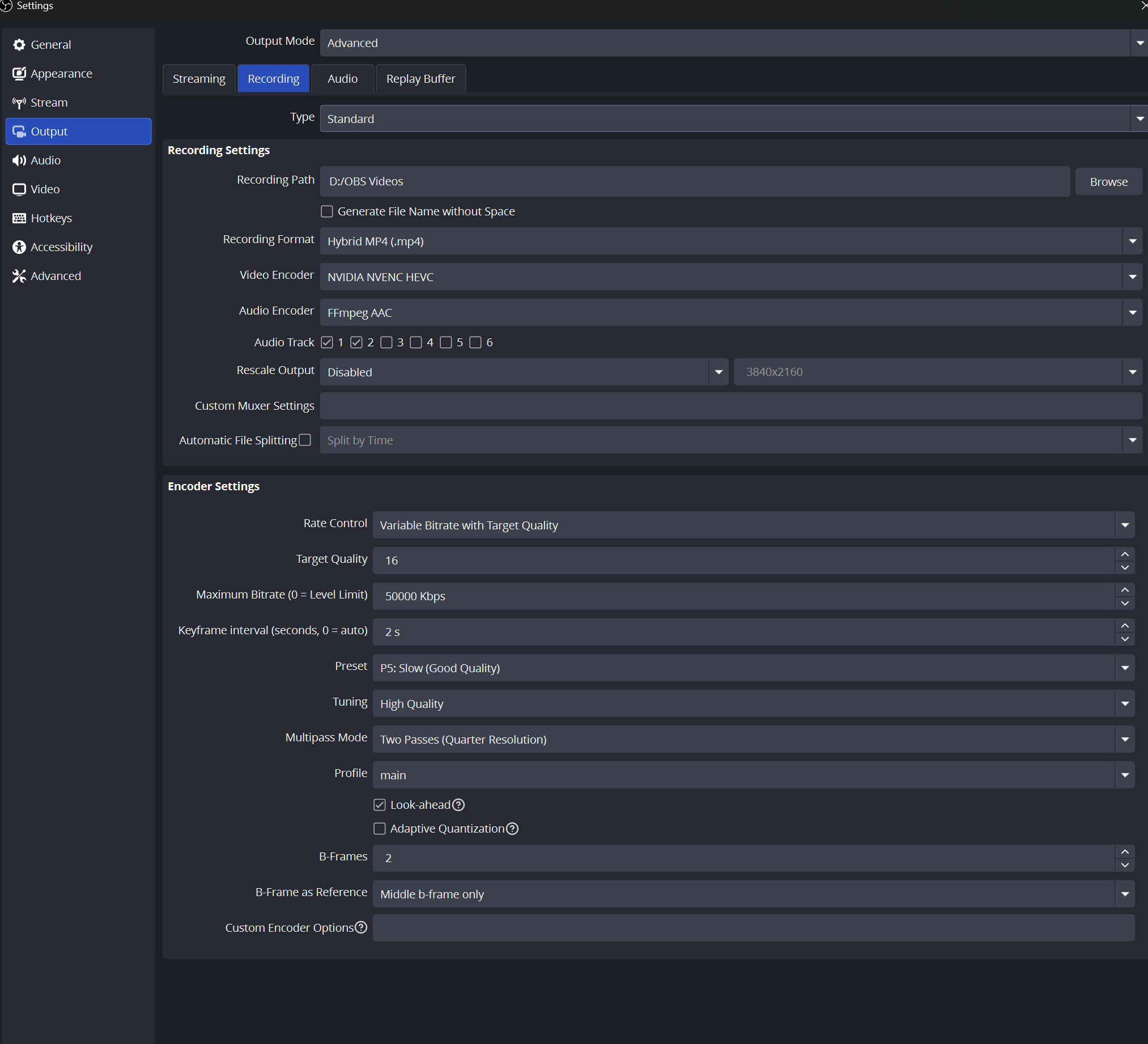
I always experiment with different settings to find what works best, but here is a screenshots of my current settings.